
Start with the official launch choices
- Reviewed
- Scope
- Early Access; see version notes
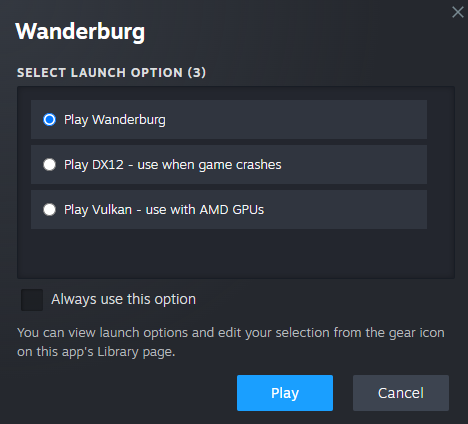
For a Wanderburg crash, first finish any pending game update and test the official Steam launch choices. The developer's 0.9.8 screenshot shows the standard option, a DX12 choice for crashes, and a Vulkan choice for AMD GPUs. Test one relevant alternative at a time and repeat the action that failed.
A frozen selection screen, an application closing, and low frame rate are different symptoms. The following checks are designed to identify which problem you have and whether a specific change helps. None guarantees a fix for every PC. Keep saves and existing progress intact while you work through the reversible checks.
Describe the failure before changing settings
Write down the last action before the problem. Did the game close before its menu, while entering a run, after selecting a vehicle, or only during a crowded late session? If an error appears, preserve its wording. A screenshot of the message is more useful than a paraphrase such as “graphics problem.”
Distinguish what stopped. A crash usually involves the application exiting or reporting a failure. A freeze leaves the application open but unresponsive. A slowdown leaves it running with reduced performance. An input-only issue may leave the scene animated and other controls working.
Also distinguish an application failure from a full computer restart or system-wide freeze. Those observations describe a broader symptom than the game returning to the desktop. Record them accurately rather than assuming that every failure has the same graphics-mode solution.
Use one short description as the test target, such as “the game exits when I start a new run with this vehicle.” Every later check should ask whether that same action still fails. Without a consistent target, reaching the menu can look like success even though the original problem has not been retested.
Complete updates and establish the version
Allow Steam to finish pending downloads and installation work before launching the next test. Close the game when changing launch selections. If the game or client requests a restart to complete an update, finish that step before comparing results.
Record the game version where it is available. A known selection-screen fix matters only if the installed build includes it. Conversely, an old report describing a bug is not proof that the same cause explains a symptom in a newer build.
Do not call a patch the latest simply because it is the last one mentioned in a guide. This page refers to specific published changes: 0.9.8 added launch choices and Spider loadout safeguards, while 0.9.10 fixed a Rare Artifact screen softlock. Your installed version may contain those changes and further updates.
If the behavior began immediately after an update, record that timing, but keep it separate from a conclusion about cause. The next controlled test still matters. A coinciding change to a driver, custom layout, or overlay can otherwise become hidden in a vague “the update broke it” report.
Test the launch choices shown by the developer
Start the game from its Steam Library entry and inspect the available launch selection. The image above is the official choice screen associated with hotfix 0.9.8. Its labels distinguish the normal launch, DX12 for crash troubleshooting, and Vulkan for AMD graphics hardware.
Choose one option appropriate to that guidance. Run the same short reproduction that failed previously. If the game previously crashed when starting a run, go beyond the title screen and start that run. If it failed in a particular selection screen, revisit the same selection.
Record the option and outcome before trying another. Do not combine a launch-mode change with several unrelated settings and then attribute any improvement to one of them. A useful comparison has a known baseline and one changed variable.
Keep the option that always reuses a launch selection unchecked while you are still testing, if the choice screen offers it. The developer's screenshot indicates that the selection can be edited later through the Library gear menu. If the chooser no longer appears, inspect that selection rather than inventing command-line arguments.
Use the choices actually offered by your installed version. A flag copied from a different game or engine guide is not established Wanderburg guidance. The available options provide a clearer starting point than a long list of undocumented launch parameters.
Decide what counts as an improved result
Reaching the main menu once is encouraging, but it does not verify that the original crash is fixed. Repeat the failed action and continue far enough to cover the point where the failure normally occurs. Keep the test proportionate to the symptom.
For a repeatable menu crash, several successful visits to that same menu provide more information than a long unrelated run. For a failure that appears only after sustained gameplay, a short launch test cannot establish long-session stability. Label it as an initial success rather than a complete resolution.
If one mode changes the symptom, record the difference. A game that launches but later freezes has improved in one respect while retaining another problem. A different error message is also useful evidence, even when the attempt still fails.
If a mode makes behavior worse, return to the prior working choice before testing another idea. Keep the actual results rather than trying to force a preferred solution. The developer's labels identify supported troubleshooting directions; they do not prove that every graphics configuration will respond identically.
Verify the installed game files
Steam's file-integrity check is a reasonable next step when installation files may be missing or damaged. Close the game and open its Library entry. From the gear or right-click menu, choose Properties, then Installed Files, and run the verification option.
Allow the process to complete and let Steam finish any resulting download. Then launch the game using the same selected mode and repeat the original failure case. Record whether verification reported work and whether the symptom changed afterward.
This check concerns installed game files. It is not an instruction to erase saves, delete a profile, or remove arbitrary configuration folders. Do not add those actions merely because a generic troubleshooting list places them next to verification.
If verification completes without changing the problem, that is still a useful result. It narrows the next investigation without proving that every file, driver, or saved state is healthy. Continue with the specific symptom rather than running the same check repeatedly without new evidence.
Match selection freezes to the relevant fixes
The official 0.9.8 notes added safety measures for a Spider vehicle loadout freeze and asked affected players to test them. The 0.9.10 notes separately fixed a softlock on the Rare Artifact screen. These are distinct situations.
If the Spider selection stops responding, record the vehicle and equipment state that led to it. If a Rare Artifact choice cannot be completed, record the screen and preceding steps. Update first, then try to reproduce the same sequence. A report that the issue persists should include the version actually tested.
Do not confuse a visible requirement with a freeze. Spiderburg can tell an account to buy another Top module because it needs two owned Top options. If the interface remains responsive and explains what is missing, follow that requirement. The Spiderburg equipment guide covers the warning.
A patch note identifying a specific bug does not establish that every superficially similar symptom has that cause. If your menu freezes at another step, describe that step accurately. Precise reproduction is more useful than assigning it the name of the nearest known issue.
Separate controller input from a frozen application
If the scene continues animating but the controller stops responding, test whether menu navigation or another input still works. Do not change graphics modes solely because one controller action seems absent.
An ability can also appear unresponsive when it is on cooldown, when a different module is equipped, or when an attack activates outside its useful direction. Those gameplay checks belong before an assumption that the application has frozen.
The controller setup guide explains how to verify steering, Nitro, and module actions separately. Use it when the problem is confined to input. Keep the controller model and active layout in your notes if the issue occurs only with that configuration.
If all input stops and the application does not recover, record that as a freeze. If the process exits, record a crash. Distinguishing these outcomes helps prevent a working input layout from being changed unnecessarily while the real problem remains untested.
Treat late-run slowdown as its own observation
A crowded run with many visible attacks can feel different from the opening. If performance gradually deteriorates without the application closing, record when it begins and whether it follows a specific module, effect, or stage of the run.
Do not infer a memory leak, a particular hardware fault, or a universal maximum enemy count from one slow session. Those are causes that require additional evidence. The useful first report is what you can observe: the approximate stage, the equipment, whether the slowdown is gradual, and whether input continues to respond.
Compare a fresh session with the same general setup if you can do so without losing important progress. If only the long session shows the problem, preserve that distinction. A successful short test should not be described as proving the late-run issue fixed.
Avoid prescribing a universal frame-rate target or graphics preset without measured results. This guide has no controlled performance benchmark across hardware. It can help you produce a reproducible case and test the supported launch options, but it cannot promise a particular frame rate from a settings list.
Keep system checks targeted and reversible
After the game-specific checks, review the operating system and graphics driver through their normal update mechanisms. Use the hardware vendor's supported source rather than a third-party utility promising to repair every crash automatically.
Record the previous driver version before changing it, then test the game again under the same launch mode. This keeps the comparison understandable. Updating several unrelated components together may be convenient, but it becomes harder to identify which change affected the symptom.
If you use nonessential overlays or capture tools, close one for a controlled test and repeat the reproduction. Restore it if there is no difference before moving to another variable. This is a way to isolate a possible interaction, not a claim that a particular overlay is known to break Wanderburg.
Do not permanently disable security protection, download replacement DLLs from unknown sites, or apply registry edits from an unrelated game guide. Those changes add risk without a verified connection to the failure. A careful bug report is a better next step when the supported checks have not identified a working configuration.
Preserve progress when investigating saved-state issues
A problem that occurs only with one existing selection or saved state can be useful evidence. It does not justify deleting that state as the first experiment. Preserve what you can observe about the affected setup, including the selected vehicle, equipment, and last successful action.
This guide does not provide a verified universal save-folder path or a guaranteed recovery procedure. Do not guess a directory based on another game's layout. If support later requests a file, confirm the exact location and purpose before moving or removing anything.
A reinstall should not be treated as proof that all state has been reset, nor should it be paired with broad folder deletion simply to make it more thorough. Installation repair and account progress are different concerns.
If you cannot reproduce the problem without risking progress, stop the repeated experiment and send the available details through the official support route. A clear limit is more useful than destroying the evidence or losing unlocks while chasing an unconfirmed fix.
Build a short test record
Use a compact note with the date, game version, selected launch mode, changed setting, and result. Add the exact reproduction steps once, then refer back to them for each test. This prevents several attempts from blurring together.
For example, your record might distinguish a normal launch that exits on entering a run, a DX12 attempt that reaches gameplay, and a later verification check that makes no further difference. These are example report categories, not claims about what will happen on your PC.
Include unsuccessful tests. Support needs to know which supported options were tried and whether the symptoms were identical. “I tried everything” is less useful than a short list with specific results.
Also record any new symptom introduced by a change. If a configuration avoids the original crash but creates another failure, it is a partial improvement. Keep that qualification so another player or developer does not mistake the test for a complete solution.
Know when the next step is a bug report
If the updated game still fails after the relevant launch-option tests and file verification, a reproducible report is a productive outcome. Use the official channels retained in the site's Footer and describe the unresolved behavior directly.
Include the Windows version, GPU, graphics-driver version, game version, launch selection, and the last action before failure. Add the exact error or a concise reproduction sequence. For a selection freeze, the chosen vehicle and modules may matter more than a long description of unrelated combat.
Review any logs or screenshots before sharing them and remove personal details that are not needed for diagnosis. Do not invent a log location if the game or support instructions have not identified one. The report can begin with the observable steps and error message.
When a change appears to work, retest the original action before returning to a long progression attempt. The beginner run guide covers gameplay once stability is adequate. Keep the configuration that passed your test recorded, so a later update or recurring failure can be compared with something concrete.